Social media integration
Instagram Professional Account
Checklist for switching an Instagram account to a professional (Business) account, on mobile and on the web.
Instagram accounts must be professional (Business) accounts before they can be used for API publishing. The wording in Instagram's menus has drifted over versions, so the labels below are the ones you are most likely to see.
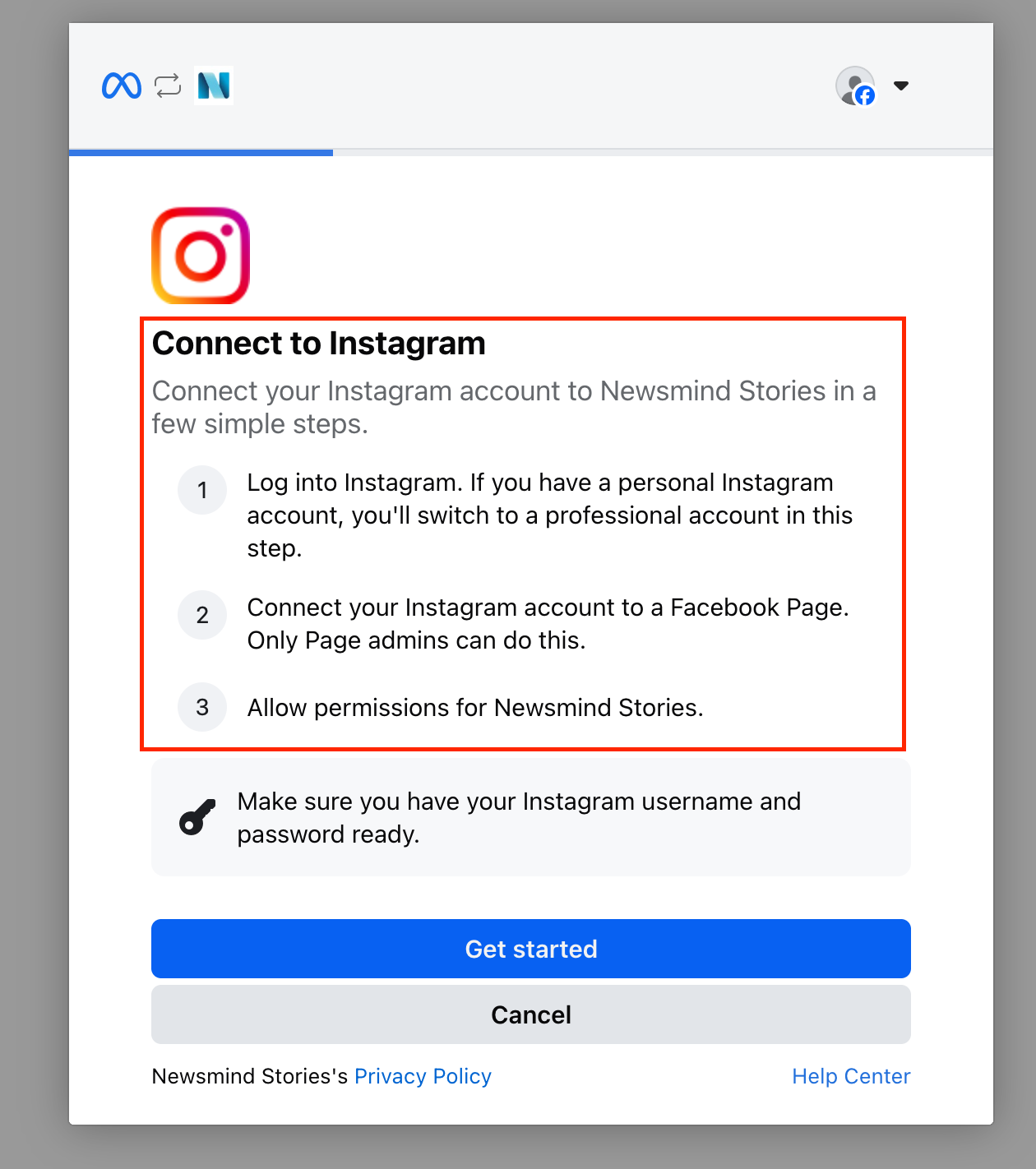
Prerequisites (both methods)
- The account is public (private accounts can't become professional).
- You have login access to the account.
- (For API publishing) An admin-accessible Facebook Page is ready to link.
Method A — mobile app (iOS / Android)
- Open the app and go to your profile.
- Tap the menu (☰) in the top right.
- Tap Settings and activity (or Settings and privacy).
- Scroll to the For professionals section → tap Account type and tools.
- Tap Switch to professional account → Continue through the intro screens.
- Choose a category that fits the business (e.g. Software, Media/News Company) → Done.
- When prompted, select Business (not Creator) → Next.
- Decide on the promotional emails toggle (consent is on by default) → Next.
- Optionally add contact info (email, phone, address), or skip.
- On the "Connect to Facebook" step, link your Facebook Page now, or Skip to do it later.
- Close the setup screen — the conversion is done.
Method B — web / desktop browser
Instagram supports switching to a professional account directly from the desktop web interface.
- Go to instagram.com and log in.
- Click your profile picture (top right) → Settings, or open Edit profile.
- Find the For professionals section → click Account type and tools.
- Click Switch to professional account.
- Select a category → confirm.
- Choose Business as the account type → Next.
- Complete the contact-info and Facebook-linking prompts (or skip).